 NL
 EN

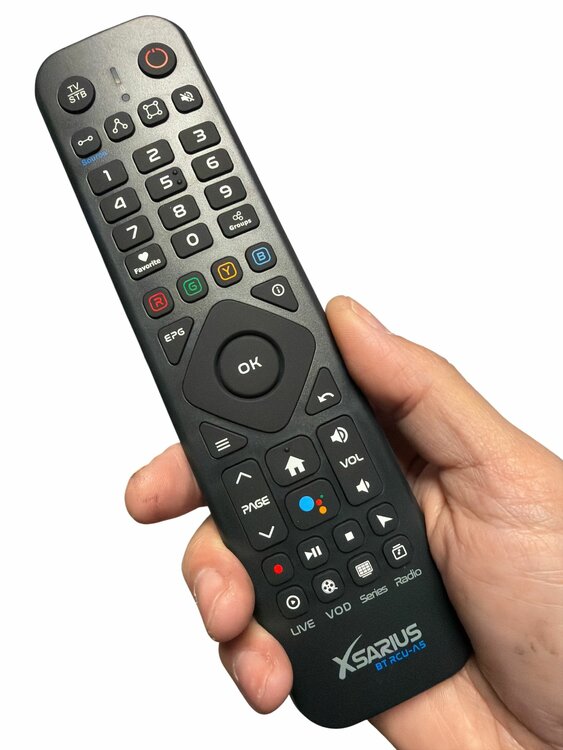
Menus, buttons and features vary by model and software version. Always check the name of your box and remote.
Start with these four buttons
Button positions and shapes vary between remotes. Look for the label or symbol on yours.
- Arrow keys
- Move the selection left, right, up or down. The highlighted tile or row is your current selection.
- OK
- Confirm the selection. During playback, OK may open a list or controls, depending on the application.
- Back ↩
- Return one step or close a window. This is different from rewinding.
- Home ⌂
- On Android models, return to the box’s home screen. The key usually has a house symbol. A Linux model’s start or menu function may work differently.
Open a function and leave it again
This Home-button route is for Android models such as the Pure 4+ and Avant 4+ Ultra. On Linux, use the start or menu function indicated by your device.
- Select the right HDMI input on your TV. Use Source/Input on the TV remote and turn on the Xsarius.
- Open the home screen. Press Home and find the tile you need, such as Settings or an installed app.
- Select it with the arrows and press OK. Read the available options when a new screen opens.
- Use Back or Home to leave. Back moves up one level; Home returns to the home screen. Home does not clear app data or perform a factory reset.
Android and Linux use different menus
The Pure 4+ and Avant 4+ Ultra are Android media players. The Sniper 3 BT uses Linux and a different, fixed software environment. Android instructions for apps or settings are not automatically suitable for the Sniper.
Follow the labels on your own screen. Software versions can change menu names and locations. See the Linux or Android buying guide for the differences in everyday use.
Playback, pause and additional buttons
Play/Pause controls playback when the app and content support it. Stop, REC, EPG, favourites and colour buttons act within the relevant application. Always check the on-screen labels or colour legend.
A REC button does not mean every source can be recorded. Catch-up, subtitles and seeking also depend on the app, source and sometimes attached storage. If only a channel, playlist or external streaming feature is missing, contact that service provider.
Lost in a menu?
Press Back once. If the screen responds but you cannot find your way, use Home and open the function again. If nothing responds, check the remote control first.
Use a normal restart through the device menu if necessary. Do not interrupt a software update. A factory reset is not a first troubleshooting step: it can remove settings and app data.
Frequently asked questions
Does Home also control my television?
Home is intended for the box’s home screen. TV functions such as volume or power depend on the remote and configured TV controls.
Why does the same button behave differently in two apps?
Applications can assign different actions to the same button. Follow the on-screen labels and the application’s instructions.